
How to Install Manok Na Pula Mod APK on Android
Installing Manok Na Pula Mod APK on Android takes six steps once the phone passes a 64-bit processor check: remove the standard game if it is installed, download the file, allow installs from your browser, open the file, accept the installer prompt and launch the game. The Manok Na Pula Mod APK page holds the current file and its SHA-256 fingerprint.
Four blockers stop installs on Android phones: a 32-bit processor, a leftover copy of the standard game, Samsung’s Auto Blocker and a store-scanner warning. Each has its own section below, in the order a phone meets them.

6 steps
What You Need Before You Start
You need an Android phone or tablet, a browser or file manager to open the downloaded file, and enough free storage for the download plus the installed game. The exact download size sits in the file-details table on the Manok Na Pula Mod page, so it stays correct when the file updates.
The game runs on Android 5.1 (API 22) and higher. Below that, the package installer rejects the file and no setting changes that.
A Wi-Fi connection helps: the download is one large file, and an interrupted transfer leaves a corrupted APK (Android Package Kit, the installer format for Android apps).
Check Your Phone’s CPU Architecture First
The current file ships 64-bit ARM libraries only (arm64-v8a). A phone whose processor is 32-bit only cannot install it, and the installer reports “App not installed” without naming the reason.
Most 64-bit phones also run 32-bit apps, but some recent 64-bit-only phones reject files that carry 32-bit libraries alone, so the check matters in both directions. To read the architecture, open Settings, About phone, note the processor or chipset name and look up its specification; a hardware-info app from the Play Store lists the supported instruction sets on one screen, and arm64-v8a in that list means the current file installs.
Your phone reports
arm64-v8a
Install
The current file
Download the APK and Verify the File
Download the file from the Manok Na Pula Mod APK page in your phone’s browser; the file lands in the Downloads folder.
The SHA-256 hash, a digital fingerprint computed from every byte of the file, is published in that page’s file-details table. If your copy produces the same 64-character value, the file is intact and unchanged. A different value means the transfer was interrupted or the file was altered on the way; delete it and download again. Upper and lower case count as the same character in this comparison.
To compute the hash on the phone, use any file-hash app, or on a computer run certutil -hashfile <file> SHA256 on Windows or shasum -a 256 <file> on macOS and Linux.
Allow Installs From Your Browser or File Manager
Android blocks installs from outside an app store until you grant the app that opened the file permission to install packages. Sideloading, installing apps from outside the official store, runs through this permission.
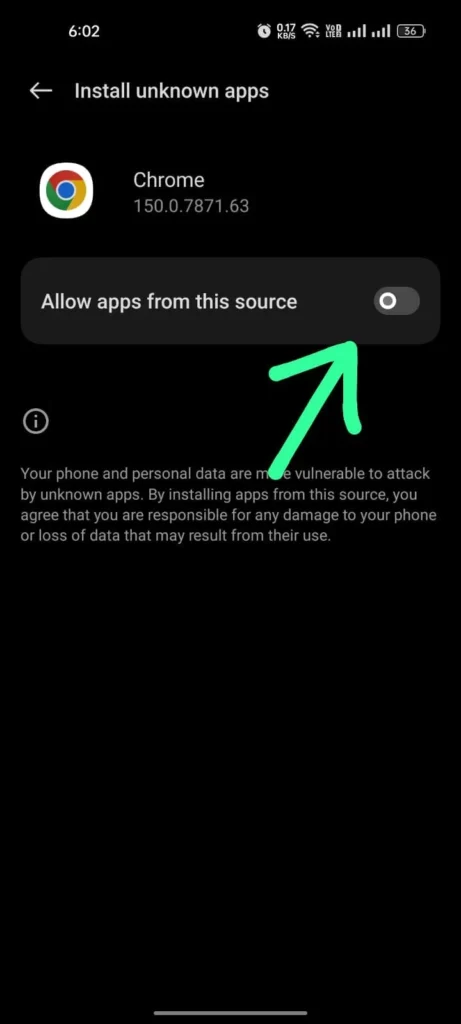
Android 8 and Later
The permission is per app. Open Settings, tap Apps, choose the browser that downloaded the file (or the file manager you will open it from), select Install unknown apps, and switch on Allow from this source. Phone makers rename some menus, and the entry keeps the words Install unknown apps or close to them.
Android 5.1 to 7.1
One global switch covers every app. Open Settings, Security, and turn on Unknown sources.
Browser Download Warnings
Android browsers warn before keeping an APK, because the file type can carry malware. Choose to keep the file; the warning describes the file type, not this file. Wait until the download notice reads complete before opening it, since a partial file fails with a parsing error.
Which App to Allow
The app that opens the file needs the permission, not the game. If Chrome downloaded the file and you open it from Chrome’s download notice, allow Chrome. If you open it from a file manager, allow the file manager. Allowing the wrong one shows the same blocking prompt again.
Samsung Auto Blocker: Turn It Off If the Install Is Blocked
Auto Blocker is a Samsung security feature that stops installs from anywhere except the Play Store and Galaxy Store, even after Install unknown apps is allowed. It belongs to One UI 6.1.1 and later, and it is on by default on Galaxy devices that shipped with One UI 6.1.1.
If an install stops with an Auto Blocker alert, open Settings, Security and privacy, Auto Blocker, and switch the toggle off. Samsung asks for authentication before it allows the change. Phones updated from an earlier One UI keep the setting they already had, so an older Galaxy that never showed the alert does not need this step.
Turn Auto Blocker back on after the install if you want the protection for other apps.
Install Manok Na Pula Mod APK Step by Step
✓
Before step 1, confirm the processor: arm64-v8a passes, and a 32-bit-only phone needs a 32-bit-compatible version.
1
Remove the standard game if it is installed (see the section on existing installs below).
2
Download the file and check the SHA-256 against the file-details table on the Manok Na Pula Mod APK page.
3
Allow installs for the app you will open the file from.
4
Open the downloaded APK from the notification or the Downloads folder.
5
Accept the store-scanner prompt if Play Protect appears (next section), then tap Install.
6
Open the game. The installer shows an Open button when it finishes; the game also appears in the app drawer.
Each step has an expected result: after step 2 the file sits in Downloads and its hash matches; after step 3 the blocking prompt no longer appears for your browser or file manager; after step 5 the installer shows a progress bar and then an Open button.
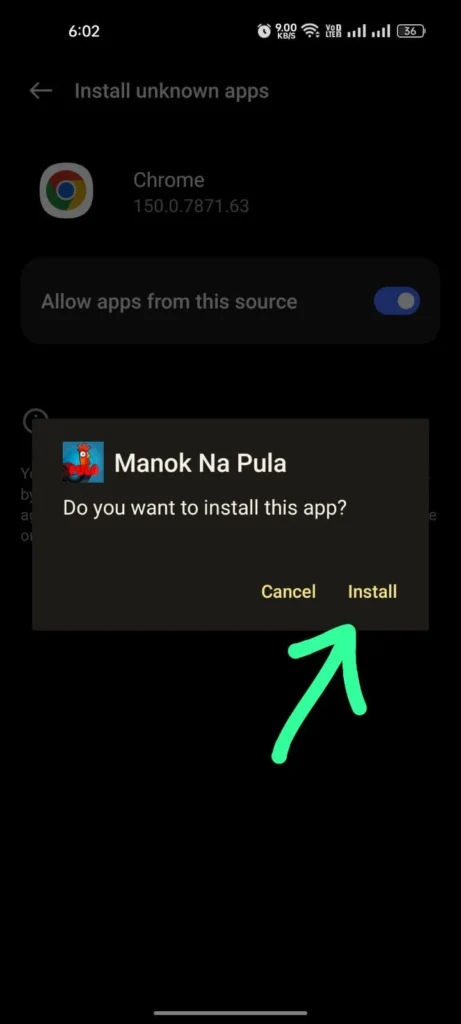
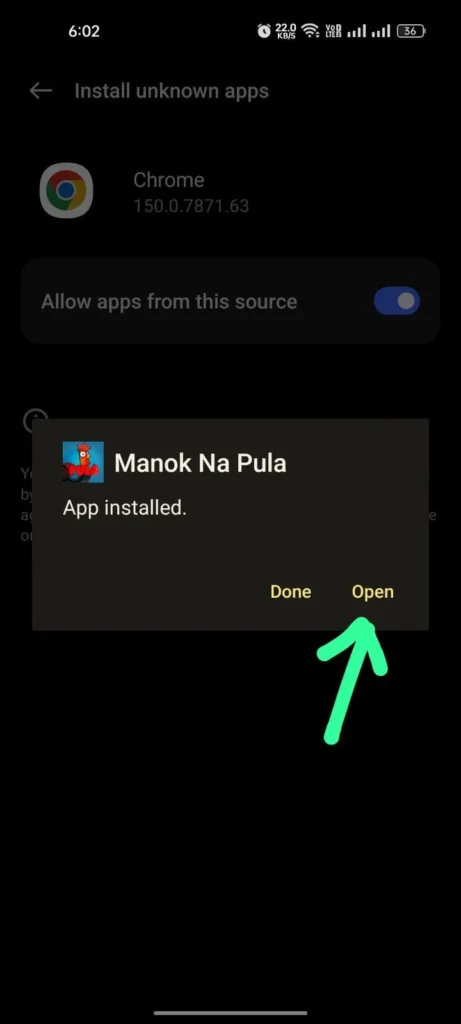
To confirm success, look for the game icon in the app drawer and open Settings, Apps, Manok Na Pula: the app entry exists only when the install completed. In the game, the mod menu opens from an in-game button, not from device settings.
Play Protect Warning: What It Means and What to Do
Google Play Protect, the scanner built into the Play Store app, checks apps installed from outside Google Play. A file it has never scanned before triggers a recommendation to scan it, and the warning appears because the package is new to Google’s systems, whatever the scan finds.
A modded package also differs from the store version by design, which is a second reason for the prompt. The Manok Na Pula Mod page carries the scan result for the current file, so you can read the verdict before you decide.
If you accept the prompt, Play Protect sends the app to Google for scanning and the install continues. If you choose to decline, the install stops and the file stays in Downloads.
To stop the prompt for future sideloads, open the Play Store, tap the profile icon, tap Play Protect, tap Settings and switch Scan apps with Play Protect off. Google recommends leaving it on, and that recommendation is the reason to turn it back on after the install.
Google Developer Verification and Sideloading
Google is adding a developer-verification requirement to Android: apps must come from developers who registered with Google, matched by package name and signing key. The first enforcement date is 2026-09-30 in Brazil, Indonesia, Singapore and Thailand, on certified Android 7 and higher phones and tablets, with a global rollout in 2027.
On that date, enforcement is limited to participating stores: Google Play, Galaxy Store, GetApps and the OPPO, HONOR, vivo and Palm stores. Direct sideloading, which is how this file installs, is not enforced yet. The way this file installs today does not change.
When enforcement reaches direct sideloads, Google’s advanced flow is the route for unverified apps:
1
Turn on Developer options.
2
Confirm that nobody is coaching you through the install.
3
Restart the phone and sign in again.
4
Wait one day, a one-time delay.
5
Authenticate with biometrics or your PIN.
6
Choose Install Anyway, and pick 7 days or indefinitely.
Installs through ADB (Android Debug Bridge, the developer command-line tool) are unaffected by the requirement.
If the Game Is Already Installed
The modded package uses the same package name as the standard game (com.tatay.manokNaPula) but a different signing key. Android refuses to install one over the other, and the installer reports “App not installed”.
To fix it, uninstall the standard game first: Settings, Apps, Manok Na Pula, Uninstall. Uninstalling removes the game’s local data from the phone; what that means for your progress is covered next.
Multiplayer carries a separate risk: using the mod in online matches can trigger anti-cheat and end in a permanent ban, which cannot be undone. Use a secondary account, not one that holds purchases. The ban-risk section of the Manok Na Pula Mod APK page covers the mode-by-mode detail.
What Happens to Your Save When You Switch Builds
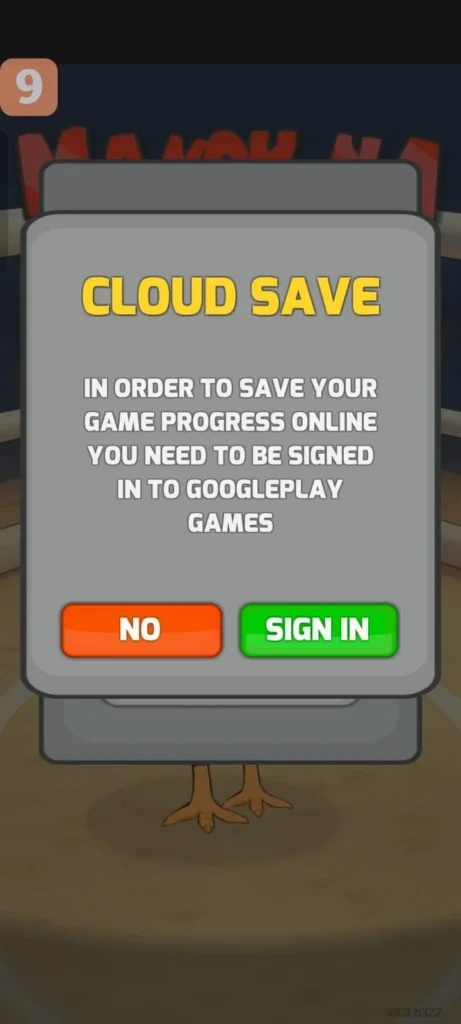
Your save is not a file you can copy. The game requests no storage permission and calls no external-files function, so progress sits in the app’s private storage, plus Google Play Games’ cloud save for a signed-in account.
The game’s own text covers the cloud side: “In order to save your game progress online you need to be signed in to GooglePlay Games,” and a successful sync shows “Game progress detected! Cloud sync successful.” Private storage is Unity’s standard location for an app’s own files, and uninstalling the app clears it.
Whether the modded build reaches the same cloud save is not stated. It carries a different signing key from the standard game, and Google Play Games sign-in is registered against an app’s signing certificate. Sign in to Google Play Games before uninstalling either build, and plan for the other build to start fresh.
Which Version to Install
The current file is the right choice for any 64-bit ARM phone on Android 5.1 or higher. A phone that fails either check needs an earlier version, and the previous versions page maps each archived file to the processors and Android releases it supports.
One archived file, v8.0, is an XAPK, a split-package format; its record on the previous versions page has the detail.
Android 14 and later also refuse apps that target very old Android versions (below API 23 on Android 14, below API 24 on Android 15). Every archived version targets API 30 or higher, so none hits that block.
“App Not Installed” and Other Errors
|
Error or symptom |
Cause |
Fix |
|---|---|---|
|
App not installed |
The standard game is still installed (signature conflict) |
Uninstall the standard game, then install again |
|
App not installed, no other detail |
The phone has a 32-bit-only processor |
Pick a 32-bit build from the archive |
|
There was a problem parsing the package |
The download is corrupted, or the phone runs below Android 5.1 |
Download the file again and compare the SHA-256 |
|
Install blocked, Auto Blocker alert (Samsung) |
Auto Blocker blocks installs from outside the stores |
Turn Auto Blocker off, install, turn it on again |
|
Play Protect warning |
The package is new to Google’s scanner |
Accept the scan prompt, or read the scan result on the Manok Na Pula Mod APK page |
|
The Install button is greyed out or the prompt loops |
Installs are not allowed for the app that opened the file |
Allow Install unknown apps for that app (Android 8 and later) or switch on Unknown sources (Android 7.1 and earlier) |
|
Not enough storage |
Free space is below the download plus the installed game |
Free space in Settings, Storage and install again |
Installing on iPhone or PC
The game’s modded package is an Android file, so it does not install on an iPhone or iPad, because iOS does not read Android packages. On a Windows PC the store version installs through Google Play Games on PC. The mod file is not part of Google’s catalog.